
Let’s set the stage. It’s a few days before VMworld 2018 (US Version). I’m frantically trying to get a demo to work for a vBrownBag session I’m giving in a couple of days. I decided to make a last-ditch effort to show off something involving my employer’s product (Cohesity CloudSpin) and using Terraform to create application stacks in the cloud with the usage of a generalized Windows Server 2016 virtual machine.
Amazingly enough, everything is working. The gist is that I can take a secondary copy of this virtual machine (coming from ESX 6.5, at the time) and convert it for use with Microsoft Azure. Then taking that generalized virtual machine, I can create a couple of web server VMs and front them with an Azure load balancer, with some sprinkling of Network Security Group work in between my VNets. Not bad, considering I had just started working with Terraform a week or so before hand.
Now, let’s fast forward to a couple of weeks ago. In my haste, I blew away my generalized image and decided it was best to recreate it. No issue, I thought to myself. I’ll just get a new Windows Server 2016 image up and going. My first few tests aren’t going so well. I knew something was wrong since my virtual machine creation options were shooting well past my usual time for powering on the VMs. I fire up a bit of Boot Diagnostics and notice that all I’m seeing is a black screen. Absolutely nothing is happening with the virtual machine. It’s like the machine isn’t even posting…
Forgotten Upgrade
Normally, you think back to all the changes you’ve done to your environment and wonder if something was different. I actually had spaced off the fact that in an effort to stabilize my lab environment, a coworker and I had standardized storage usage across all servers in the cluster and we decided it was best to finally upgrade to ESX 6.7.
ESX 6.7, as it would happen, brought forth Virtual Machine Hardware version 14. In the past, this has normally not caused any sort of problem for me. This time around, I found something that I never expected. VM Hardware 14 brings for some new changes to default behavior for some operating systems. As it would have it, after two days of searching around, I found the answer here, on a screen very few admins tend to look at, outside of some really unique use cases:
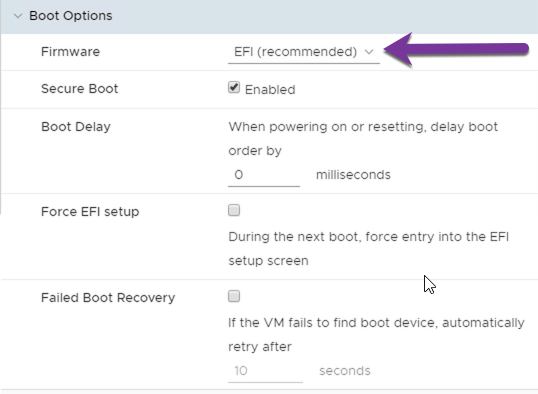
The changes to the way ESX 6.7 can now handle Windows Server 2016 (with Secure Boot and Windows Virtualization Based Security) have led to the default firmware setting being changed to EFI. For most people, this isn’t going to be seen as any sort of issue. However, if you do anything with public clouds (for instance, the aforementioned conversion from a VMware-based virtual machine to VHD, Azure’s VM object type) then you are going to realize this is a big problem. Most of the major cloud providers specifically call out EFI firmware as something they aren’t willing to handle right now.
What this means is if you do anything related to conversion from a VMware environment to a public cloud environment (whether that’s using native tools from Microsoft or Amazon or using third-party conversion tools [such as Cohesity’s CloudSpin]), you are going to have a problem on your hands, if you don’t address this default setting. The good news is that the option can be changed back (as this is just the default behavior, not the forced behavior).
Choices
How I see it, you really have two choices in this manner, at least until the public clouds can start handling virtual machines with EFI firmware. Your first option is to build any net new virtual machines with Hardware Version 14, but programmatically/manually change the Firmware setting from EFI to BIOS. You just have to remember to change into the screen (if manual) or run some PowerCLI:
$vm = Get-VM -Name

$spec = new-object VMware.Vim.VirtualMachineConfigSpec

$spec.Firmware = New-Object VMware.Vim.GuestOsDescriptor

$spec.Firmware = "bios"

$task = $vm.ExtensionData.ReconfigVM_Task($spec)
Your second option would be to just keep building a virtual machine with Hardware Version 13. Unless you are specifically needing features with Secure Boot and Windows Virtualization Based Security in Windows Server 2016 (or needing Red Hat Enterprise Linux 8, which appears as a supported OS with ESX 6.7 and defaults to EFI firmware), Hardware Version 13 will still work.
Final Thoughts
When I posted this original inquiry on social media, I received a lot of feedback, although some of it felt very much like this wasn’t an issue for VMware, but more of an issue for the public clouds. I get that VMware is in their own right to change the defaults how they see fit. It’s their product. Let them decide. I just wish there was more notice out there for some in the admin community. While many of those that are likely to read this blog consider themselves connected to the virtualization community, there are many who are not and many of them don’t delve into advanced setting properties like this. In some of those cases, depended upon services, such as Azure Site Recovery, as an example, are now potentially rendered useless.
I get that public cloud providers need to start adopting more modern standards. I was actually surprised to read documentation from both Microsoft Azure and Amazon Web Services to state their disdain for all things EFI firmware. The many public cloud providers out there really need to start getting on the ball with these sorts of things. It’s not like EFI firmware is that brand new.
That being said, I want to at least put this word of caution out there and in subsequent VMware releases, pay attention to the changes happening in the more advanced options for many operations. You never know when something like your public cloud backup strategy gets rendered useless…


 Jon's Blog